Splashtop Personal
- 4.5
- Rating
- 5.00M
- Installs
- Free
- Price
 Analysis by App-foxy
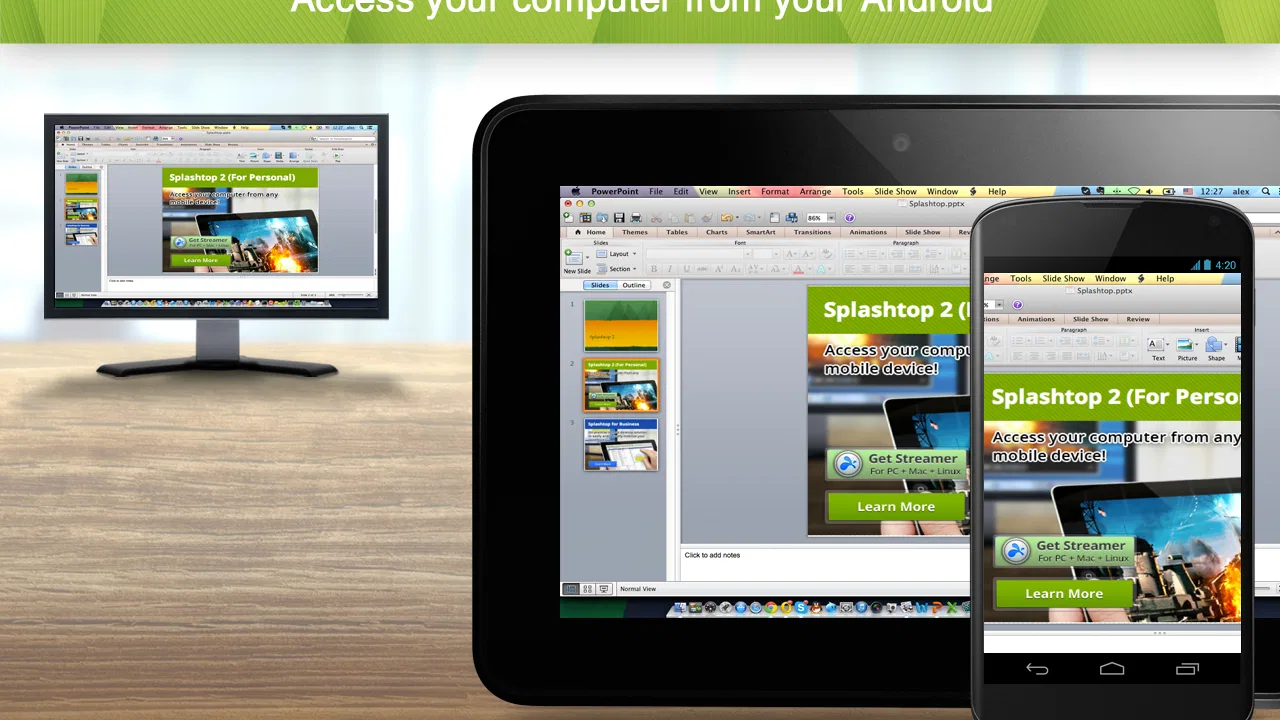
I tend to judge remote-access apps by what happens after the novelty wears off. Can I reach the computer I actually need, find the right file without fighting the interface, and use the connection comfortably enough to make it part of my routine? Splashtop Personal is built around that practical question. It lets me access a desktop computer from a mobile device, with games, movies, and files available when I am away from the desk.
After spending time with it, I see it as a useful remote desktop app for people who want their existing computer to remain the main workspace. It is not trying to replace a full desktop setup with a tiny mobile screen. Instead, it gives you a way to reach that setup when you are in another room, traveling, or simply too comfortable on the sofa to return to the desk.
Splashtop, the developer, has kept the product focused on personal access rather than turning it into a crowded business-management suite. That focus is one of its strengths, although it also means the experience depends heavily on the computer you connect to, the quality of your network, and how carefully you configure the app before you need it.
You May Also Like

 AccuWeather: Weather Radar
AccuWeather Review: A Quick, Clear Forecast for Everyday Decisions
For everyday plans, the best forecast is the one you can understand quickly. AccuWeather makes rain timing, radar, and local conditions easy to act on, with a few trade-offs.

 Hill Climb Racing
Why Hill Climb Racing Still Turns Crashes Into One More Run
A tiny car, a bumpy hill and one more upgrade: Hill Climb Racing keeps resurfacing because its simple chaos makes every near-miss feel personal.

 AliExpress - Shopping App
AliExpress Makes Global Shopping Feel Personal, but Shoppers Bear the Risk
AliExpress turns a global marketplace into a pocket-sized discovery engine. Its reach is useful, its shopping loop compelling, and its trade-offs easy to miss.

 Lords Mobile: Kingdom Wars
Lords Mobile Is a Kingdom-Building Routine, Not a Quick Match
A case-by-case verdict on the building, battles, device demands, and social commitments that make Lords Mobile rewarding for some players and exhausting for others.

 PDF Scanner app - TapScanner
TapScanner Makes Paperwork Easier to Capture, Check, and Share
TapScanner makes scanning with a phone feel less like a rescue operation and more like a dependable step in getting work done. Its capture tools are useful, though not flawless.

 Block Blast!
 Shows How Much a Puzzle Game Can Leave Out
A quiet grid game shows why puzzle players increasingly value instant clarity, repeatable skill and low-pressure play—and where the genre still needs to catch up.
More From Our News Desk
View All News


How I use Splashtop Personal in a normal week
In a normal week, I treat Splashtop Personal as a quick route back to my desktop rather than a place to do every task. I connect with a specific job in mind, such as checking a file or confirming that an application finished its work, then leave once I’m done. That small boundary keeps remote access convenient without letting a short check turn into an awkward mobile work session.
The baseline workflow is simple, but preparation matters
The most useful way to approach Splashtop Personal is to think of it as a bridge to one familiar computer. I leave the desktop set up with the files and applications I already use, then connect from a phone or tablet when I need something that is not stored locally. That is more convenient than copying files back and forth or trying to remember which version of a document is the newest.
A realistic example is working from another room while a large file is exporting on the desktop. I can connect from a mobile device, check the progress, open another application, or retrieve a finished file without interrupting the computer’s work. The benefit is not that the mobile device suddenly becomes a powerful workstation. The benefit is that I do not have to be physically beside the workstation for every small decision.
The same pattern works for media. If my movie collection or personal files live on the computer, remote access can be more convenient than filling the phone with copies. This is especially helpful when I want to start something casually and do not want to plan storage in advance. For games, the idea is attractive too, but expectations need to stay realistic: the result depends on the game, the controls, the connection, and how much delay I can tolerate.
I would not use a remote session as my first choice for every task. Typing a long document on a phone remains less comfortable than using a laptop, and detailed creative work can feel cramped on a small display. Splashtop Personal is at its best for short sessions, checking something, launching an application, moving a file, or continuing light work when the main computer is out of reach.
Before relying on it away from home, I would test the complete routine locally and then from the place where I expect to use it. That trial reveals more than a quick installation does. It shows whether the desktop stays available, whether the mobile controls feel natural, and whether the network handles the kind of content I want to view. A remote-access setup that works perfectly beside the computer may feel very different from a weak connection elsewhere.
What the large user base tells me, and what it does not
Splashtop Personal has a 4.5 average from around 110 thousand ratings, with over 5 million installs. Those figures suggest that the basic idea works for a substantial number of people, and I can understand why: the app solves a clear problem without asking users to rebuild their entire workflow.
It is free to install, rated for Everyone, and the current version is 3.8.0.25. The app first appeared on August 7, 2012, so it is not a new experiment in remote access. That history is reassuring when I want a familiar tool rather than a flashy utility that may change direction quickly. At the same time, longevity does not remove the need to check whether the current experience suits my particular device and network.
The free starting point makes it easy to test the central workflow before committing to it. There are in-app purchases ranging from $0.99 to $23.99 per item, so I would look carefully at what is included for the exact use case I have in mind. I would not assume that every remote-access scenario is covered by the free experience simply because installation costs nothing.
Settings I check before judging the app
The first setting I pay attention to is the computer connection itself. The desktop needs to be ready when I want access, and the session is only as dependable as that computer’s power state, network connection, and general availability. This is an important distinction: Splashtop Personal can provide a path to the machine, but it cannot make an unavailable computer behave like an always-on server.
I also check the display and control choices before attempting anything demanding. A phone screen may need a different approach from a tablet, and touch interaction does not map equally well to every desktop application. I prefer to spend a few minutes learning how the app handles tapping, dragging, scrolling, and keyboard input rather than discovering the awkward parts while trying to fix something urgently.
For repeated use, I keep the desktop organized around remote access. I place the applications I use most often where they are easy to find and avoid leaving a confusing collection of windows open. This is not a special feature; it is a habit that makes the remote session faster. A tidy desktop reduces the number of tiny touch gestures that can make mobile control feel slow.
Network conditions deserve their own check. A stable connection is more valuable than impressive peak speed because interruptions are frustrating when I am moving through files or watching media. If video becomes unpleasant, I treat that as a reason to reduce the ambition of the session rather than immediately blaming the app. Remote streaming always has to send the computer’s output across the network, and that introduces variables a local file does not have.
Security is part of the setup too. I use a strong, unique sign-in choice and avoid treating remote access as something to leave unattended without thought. I also consider who can physically reach the desktop and what remains open on screen. Convenience is the point of the app, but convenience should not mean forgetting that the remote session exposes the same computer and files I use locally.
Small habits that make sessions noticeably faster
The biggest speed improvement comes from deciding what I want to do before connecting. If I am checking an export, I go directly to that application. If I need a document, I already know its folder. Wandering around a desktop through touch controls is much slower than following a short plan, especially on a phone.
I use a short repeatable sequence for common tasks: connect, open the target application, complete the action, close anything sensitive, and disconnect. That routine reduces mistakes and prevents me from leaving an unnecessary session active. It also makes the app feel less like a technical demonstration and more like a dependable utility.
Another useful pattern is to separate “quick access” work from “full work.” Quick access includes checking a status, copying a small item, starting playback, or confirming that a process finished. Full work means extended writing, editing, or anything requiring precise pointer movement. Splashtop Personal handles the first group much more naturally than the second on a phone.
When I use a tablet, I give the session more room and treat it as a temporary window onto the desktop. When I use a phone, I focus on actions with clear targets. This simple distinction changes my expectations and helps me avoid judging the app unfairly for a limitation created by the screen size.
For media, I start with content that does not demand perfect timing. Watching a film can be enjoyable when the connection is steady, but remote playback is not identical to playing a locally stored file. For games, I am even more selective. Turn-based titles, menus, strategy planning, and games with forgiving controls are more suitable than competitive action where a small delay can decide the outcome.
Where the advanced use cases meet real limits
The app’s appeal is strongest when I already own a capable desktop and simply need access to it. That also reveals its main limitation. Splashtop Personal does not remove the desktop’s hardware limits, and it does not turn a weak connection into a strong one. If the computer struggles with a task locally, remote access will not improve that performance; it only changes where I control it from.
Input is another boundary. Touch controls can imitate desktop interaction, but imitation is not the same as a physical mouse and keyboard. I can manage many short tasks, yet precision work becomes tiring. If my main goal is several hours of professional editing, programming, or spreadsheet work, I would choose a laptop or a proper remote workstation setup instead.
Games require the most careful judgment. The store summary mentions access to games, but that does not mean every game will feel equally playable through a mobile connection. Titles that depend on rapid reactions, exact cursor placement, or complicated keyboard combinations are poor candidates. I would use the app for occasional access to a game library or slower-paced play, not as a guaranteed replacement for a gaming computer.
There is also a practical dependence on the host computer’s state. If the machine is shut down, disconnected, or unavailable for another reason, the mobile app cannot provide the files and programs stored there. This is why I see the app as part of a system rather than a magic storage locker. The desktop, its network, and my preparation all contribute to the final experience.
Compared with copying files to cloud storage, Splashtop Personal gives me access to the original desktop environment instead of only a selected folder. That is useful when the file depends on a particular application or local library. Cloud storage is usually better for simple sharing, collaboration, and offline access, while remote access is better when I need the computer itself.
Compared with a conventional remote-desktop tool aimed at technical administration, this feels more approachable for personal media, files, and everyday control. A specialized business tool may be a better choice for managing many machines, strict organizational policies, or formal support workflows. Splashtop Personal makes more sense when the target is my own computer and the goal is convenience.
Compared with carrying a laptop, the app wins on weight and immediacy but loses on input comfort. Compared with a local mobile app, it wins when the desktop version contains the files or tools I need but loses when the task can be completed more simply on the phone. I find that comparison useful because it prevents me from forcing remote access into situations where a native mobile solution is clearly easier.
Who should use it, and who should skip it
I would recommend Splashtop Personal to someone with a well-organized home computer who regularly needs occasional access from a phone or tablet. It is a good fit for checking work in progress, reaching a personal file, starting media, or handling a small desktop task while away from the desk. It is also appealing to people who prefer keeping their main files and applications in one place.
It is less suitable for someone who wants a complete mobile office, reliable high-speed competitive gaming, or effortless access to a computer that is frequently unavailable. If I needed collaboration, shared editing, or a workflow designed around several users, I would look toward a service built for those purposes. If I only need a handful of files, cloud storage may be simpler and less dependent on the home computer.
New users should begin with a modest test: connect to the desktop, open one familiar application, move through a few folders, and perform a task that matters to them. Then repeat it under the network conditions they normally face. That test answers the questions that matter most—whether the controls are comfortable, whether the session stays stable, and whether the app saves enough time to justify becoming part of the routine.
My verdict after building a repeatable routine
The real strength of Splashtop Personal is dependable access to an existing personal computer, not the promise of replacing one. Once I combine a prepared desktop, sensible network expectations, a few control adjustments, and short task-focused sessions, the app becomes genuinely useful. It is especially good at removing small obstacles: checking something from another room, retrieving a file, or controlling media without moving back to the desk.
I appreciate that the free entry point makes experimentation straightforward, while the long presence of Splashtop and its broad audience give the product a sense of maturity. Still, I would not recommend paying for additional functionality until I had tested the exact workflow I care about. Remote access quality is personal, and a strong experience for file retrieval may not translate into a satisfying experience for games or extended editing.
My final view is positive but specific. I would install it for personal remote access when my desktop is the center of my digital life and my mobile device is mainly the convenient controller. I would skip it when I need a cloud-first workspace, multi-user collaboration, or precise all-day computer input. For the right user, Splashtop Personal is a practical bridge between those two devices, and its best results come from experienced habits rather than from expecting the app to solve every remote-computing problem on its own.
FAQs for Splashtop Personal
01What is Splashtop Personal and what can I use it for?
Splashtop Personal is a remote desktop application that lets you access and control a computer from an Android or iOS device. After installing the required software on your computer and signing in with the same account, you can view the desktop, open files, use programs, and perform many everyday tasks remotely. It is especially useful when you need access to a home computer while traveling or away from your desk.
02What devices and operating systems are compatible with Splashtop Personal?
Splashtop Personal is designed for mobile devices running supported versions of Android or iOS, while the computer you want to access must use a compatible desktop operating system, such as Windows or macOS, depending on the current product requirements. Compatibility can change as updates are released, so it is important to check the official store listing and Splashtop’s support documentation before downloading, particularly if you use an older phone, tablet, or computer.
03Do I need to install Splashtop Personal on both my mobile device and computer?
Yes. The mobile application works together with Splashtop’s desktop streamer software, which must be installed on the computer you plan to access. You also need to sign in with the appropriate Splashtop account and complete the pairing or setup process. Installing only the mobile app will not provide remote access by itself. The computer generally needs to be powered on, connected to the internet, and available for the connection to work.
04Does Splashtop Personal require a subscription or additional payment?
Splashtop Personal may offer different plans, features, and limitations depending on the platform, connection type, and intended use. Basic access can sometimes be available under specific conditions, while features such as remote access from outside the local network, higher-quality streaming, or advanced functionality may require a paid plan. Before downloading, review the current pricing, trial terms, and in-app purchase information because availability and subscription conditions can change.
05Is Splashtop Personal secure for accessing my computer remotely?
Splashtop Personal includes account-based access and security measures intended to protect remote connections, but safe usage also depends on your own setup. Use a strong, unique password, enable available authentication protections, keep the mobile app and desktop streamer updated, and avoid sharing account credentials. You should also secure the computer itself with a password and trusted network settings. Remote access is convenient, but no service should be treated as completely risk-free.
Pros
- Remote access feels responsive on strong Wi‑Fi connections.
- Supports streaming audio from the remote computer.
- Works with Windows and Mac computers.
- Useful for accessing files and apps while traveling.
- Setup is generally straightforward for personal devices.
Cons
- Performance drops noticeably on slow or unstable networks.
- Some advanced features require a paid subscription.
- Remote gaming can suffer from input lag and visual compression.
- The computer must remain powered on and connected to the internet.
- Touch controls may feel awkward for desktop software.

Splashtop Personal
Gallery